Deploy OpenDesk on CCE
This blueprint showcases how to deploy a scalable, high-availability (HA) instance of OpenDesk on T Cloud Public. Unlike the evaluation environment demonstrated in a previous guide, this production setup externalizes some services such as databases, caches and object storage onto T Cloud Public Managed Services (RDS, DCS, OBS) and uses SFS Turbo for shared filesystem access.
All configuration files, Helmfiles, and patch files referenced in this guide are available in the OpenDesk Blueprints Repository (under path helmfile/environments/prod).
Solution Overview
In production, the architecture shifts from a "bundled" model (everything in-cluster) to a "distributed" model where database services are externalized to T Cloud Public managed offerings.
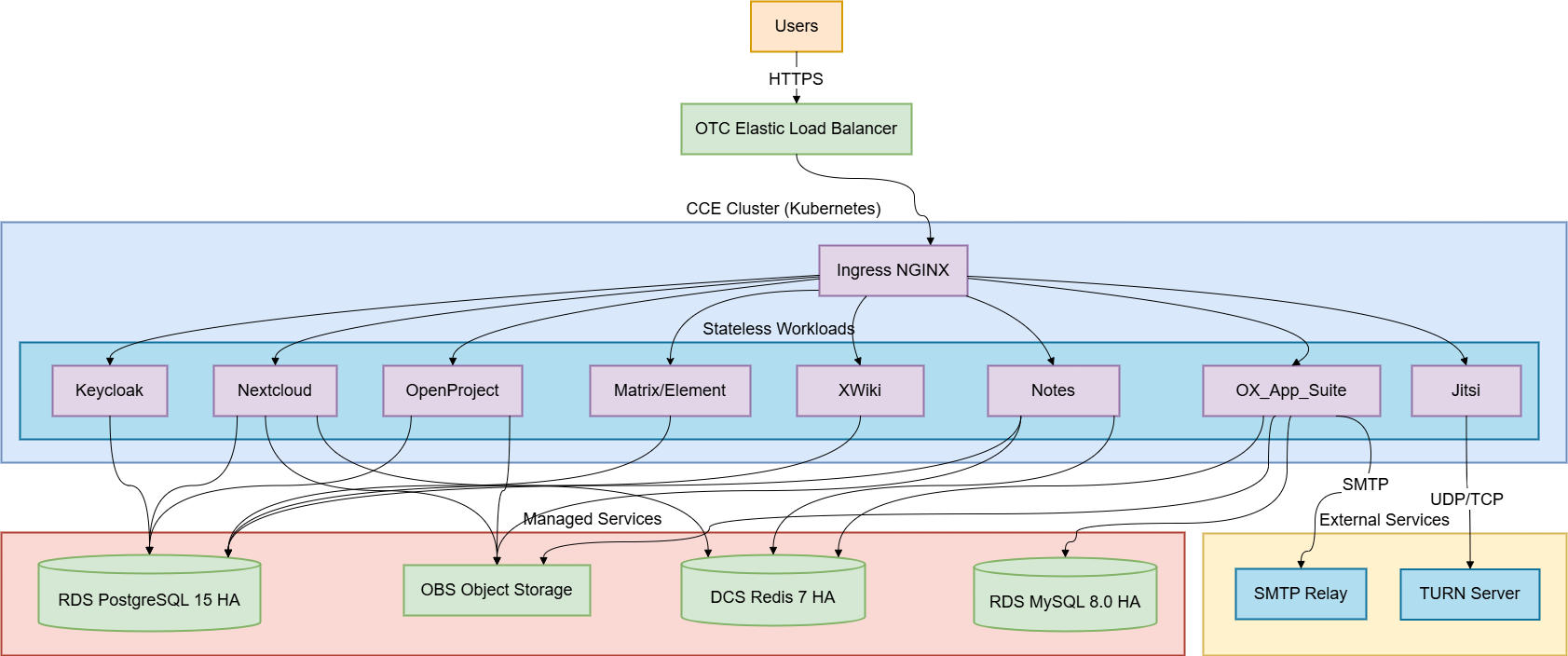
Prerequisites
Tools
- kubectl — configured to access your CCE cluster
- Helm ≥ 3.17.3
- Helmfile ≥ 1.0.0
- helm-diff plugin ≥ 3.11.0
- yq ≥ 4.x — required by the bootstrap script (
snap install yqor see yq install docs)
Cluster Dependencies
The same cluster-level prerequisites, as in the Evaluation Guide, apply here as well:
- Ingress NGINX Controller (≥ 1.11.5), with the critical
configMapsettings. - cert-manager, with a
ClusterIssuerfor DNS-01 wildcard certificates. - Default Storage Class, defaulting to
csi-disk-topologyclass. - Prometheus Stack is required for monitoring.
Managed Services (Pre-Provisioned)
All of the following T Public Cloud resources must be provisioned before starting the deployment. The Helm charts do not create these resources automatically.
| Service | OTC Offering | Spec |
|---|---|---|
| PostgreSQL | RDS for PostgreSQL | Version 15.x, HA (Primary+Standby), ≥ 4 vCPU / 8 GB RAM |
| MySQL | RDS for MySQL | Version 8.0, HA (Primary+Standby), ≥ 2 vCPU / 4 GB RAM |
| Redis | DCS for Redis | Version 7.x, HA (Master+Replica), with AUTH enabled |
| Object Storage | OBS | 7 private buckets (see Provision OBS Buckets) |
| Shared Filesystem | SFS Turbo | ≥ 500 GB, Standard or Performance type |
| CCE Cluster | CCE | Minimum 3 worker nodes across different AZs |
Memcached is not externalized. OTC does not offer a managed Memcached service, so the bundled in-cluster Memcached deployment is kept as-is. It is used internally by OX App Suite and is not a critical data store — no persistent state is lost if the pod restarts.
All managed services must be in the same VPC as your CCE cluster (or peered). Use private IP addresses for RDS and the DCS hostname for Redis.
Never expose database ports to the public internet.
You must update the Security Groups of your RDS PostgreSQL and RDS MySQL instances to allow inbound traffic on ports 5432 and 3306 respectively from the CCE cluster's VPC CIDR (or node subnet).
Refer to the guide: Configure Security Groups for RDS Instances for step-by-step instructions.
Provisioning OBS Buckets
OBS buckets cannot be created by in-cluster Jobs. You must create them via the T Cloud Public Console or Terraform before starting with deployment. Create the following buckets within your tenant. The bucket names must exactly match the values defined in objectstores.yaml.gotmpl:
| Bucket Name | Used By | Versioning | Notes |
|---|---|---|---|
| opendesk-migrations | Data migrations | Suspended | — |
| opendesk-nextcloud | Nextcloud (file storage) | Suspended | — |
| opendesk-notes | Notes (document storage) | Enabled | Required for conflict resolution |
| opendesk-openproject | OpenProject (attachments) | Suspended | — |
| opendesk-openxchange | OX App Suite (filestore) | Suspended | — |
| opendesk-ums | Nubus / Portal | Suspended | Requires public read policy on portal-assets/ |
| opendesk-dovecot | Dovecot (mail storage) | Suspended | — |
Enable versioning for the opendesk-notes bucket. This supports document conflict resolution and document history in the Notes application.
The opendesk-ums bucket requires a "public read policy" on the portal-assets/ prefix so the portal frontend can load branding assets without authentication.
Navigate to the T Cloud Public Console -> Bucket -> Permissions -> Bucket Policies -> Create, and apply:
{
    "Statement": [
        {
            "Sid": "PublicReadPortalAssets",
            "Effect": "Allow",
            "Principal": {
                "ID": [
                    "*"
                ]
            },
            "Action": [
                "GetObject"
            ],
            "Resource": [
                "opendesk-ums/portal-assets/*"
            ]
        }
    ]
}
Creating IAM Credentials for OBS
To access OBS we need to use AK/SK pairs. You have two options:
| Option | Approach | Recommendation |
|---|---|---|
| (A) Shared Credentials | One IAM user, one AK/SK pair for all buckets | Simpler setup |
| (B) Per-Bucket Credentials | One IAM user per bucket, each with scoped permissions | More secure |
It is not recommended to use Shared Credentials in production. A single AK/SK pair with access to all buckets means that if the credentials are leaked or compromised, an attacker gains unrestricted access to all OpenDesk data across every service (Nextcloud, OX App Suite, OpenProject, UMS, etc.) at once.
Use Per-Bucket Credentials by creating a dedicated IAM user for each bucket with permissions limited to that specific resource. This approach restricts the impact of compromised credentials to the data of a single service.
Option A: Shared Credentials (Simpler)
- Go to IAM -> Users -> Create User
- Set Access Type to Programmatic access
- Create a User Group and authorize it with a policy granting access to all 7
opendesk-*buckets - Add the user to the group
- Create an AK/SK pair for the user and download it.
Option B: Per-Bucket IAM Users (Recommended)
Create one IAM user per service:
| Bucket | Env Vars (AK/SK) |
|---|---|
| opendesk-dovecot | OBS_AK_DOVECOT, OBS_SK_DOVECOT |
| opendesk-migrations | OBS_AK_MIGRATIONS, OBS_SK_MIGRATIONS |
| opendesk-nextcloud | OBS_AK_NEXTCLOUD, OBS_SK_NEXTCLOUD |
| opendesk-notes | OBS_AK_NOTES, OBS_SK_NOTES |
| opendesk-ums | OBS_AK_UMS, OBS_SK_UMS |
| opendesk-openproject | OBS_AK_OPENPROJECT, OBS_SK_OPENPROJECT |
| opendesk-openxchange | OBS_AK_OPENXCHANGE, OBS_SK_OPENXCHANGE |
For each bucket, follow these steps:
- Create a custom policy (IAM -> Policies -> Create Custom Policy) with the following JSON (replace
<bucket-name>):
{
    "Version": "1.1",
    "Statement": [
        {
            "Effect": "Allow",
            "Action": [
              // Give ReadWrite and ListOnly permissions
            ],
            "Resource": [
                "OBS:*:*:bucket:<bucket-name>",
                "OBS:*:*:object:*"
            ]
        }
    ]
}
- Create an IAM User (IAM -> Users -> Create User) with Programmatic access.
- Create a User Group IAM -> Users -> Create User Group.
- Add the IAM user to the group.
- Authorize the group with the custom policy created in step 1 (IAM -> User Groups -> Authorize).
- Create an AK/SK pair for the user (IAM -> Users, select user and click Security Settings -> Create Access Key) and download it.
After configuring credentials, verify bucket access using the MinIO Client (mc):
mc alias set obs \
  https://obs.eu-de.otc.t-systems.com \
  <AK> <SK> \
  --path on

# Verify all buckets are visible
mc ls obs/<bucket-name> | grep opendesk
Configuring Environment Variables
Clone the blueprints repository and navigate to the production environment directory:
git clone https://github.com/opentelekomcloud-blueprints/opendesk.git
cd opendesk/helmfile/environments/prod
All credentials, including database passwords, the Redis password, and OBS access keys, are provided to the deployment through a single environment file. This file is sourced before executing both the bootstrap script and helmfile apply.
Creating the env file
cp files/bootstrap-external.env.example files/bootstrap-external.env
Filling in the Environment Variables
Open the file files/bootstrap-external.env and populate all required values accordingly:
# Kubernetes namespace where openDesk is deployed
NAMESPACE="opendesk"

# Path to upstream images.yaml.gotmpl (used to resolve container image versions)
IMAGES_TEMPLATE="../../default/images.yaml.gotmpl"

# ── PostgreSQL (OTC RDS for PostgreSQL 15.x) ──────────────────────────────────
PG_HOST="<RDS_POSTGRESQL_PRIVATE_IP>"   # e.g. "192.168.0.100"
PG_PORT="5432"
PG_ADMIN_USER="root"                    # RDS admin username
PG_ADMIN_PASSWORD="<RDS_ADMIN_PASSWORD>"

# ── MariaDB/MySQL (OTC RDS for MySQL 8.0) ─────────────────────────────────────
MARIA_HOST="<RDS_MYSQL_PRIVATE_IP>"     # e.g. "192.168.0.101"
MARIA_PORT="3306"
MARIA_ROOT_PASSWORD="<RDS_MYSQL_ROOT_PASSWORD>"

# ── Per-service PostgreSQL passwords ──────────────────────────────────────────
# Use strong, unique passwords for each service.
DB_KEYCLOAK_PASSWORD="<generate-strong-password>"
DB_KEYCLOAK_EXT_PASSWORD="<generate-strong-password>"
DB_SYNAPSE_PASSWORD="<generate-strong-password>"
DB_NEXTCLOUD_PASSWORD="<generate-strong-password>"
DB_NOTES_PASSWORD="<generate-strong-password>"
DB_OPENPROJECT_PASSWORD="<generate-strong-password>"
DB_XWIKI_PASSWORD="<generate-strong-password>"
DB_GUARDIAN_PASSWORD="<generate-strong-password>"
DB_NOTIFICATIONS_PASSWORD="<generate-strong-password>"
DB_SELFSERVICE_PASSWORD="<generate-strong-password>"
DB_AUTHSESSION_PASSWORD="<generate-strong-password>"

# ── MariaDB service password ───────────────────────────────────────────────────
DB_OX_PASSWORD="<generate-strong-password>"

# ── Redis (OTC DCS for Redis) ──────────────────────────────────────────────────
CACHE_REDIS_PASSWORD="<DCS_REDIS_AUTH_PASSWORD>"

# ── OBS Object Storage (AK/SK per service or shared) ──────────────────────────
OBS_AK_DOVECOT="<AK_DOVECOT>"
OBS_SK_DOVECOT="<SK_DOVECOT>"
OBS_AK_MIGRATIONS="<AK_MIGRATIONS>"
OBS_SK_MIGRATIONS="<SK_MIGRATIONS>"
OBS_AK_NEXTCLOUD="<AK_NEXTCLOUD>"
OBS_SK_NEXTCLOUD="<SK_NEXTCLOUD>"
OBS_AK_NOTES="<AK_NOTES>"
OBS_SK_NOTES="<SK_NOTES>"
OBS_AK_UMS="<AK_UMS>"
OBS_SK_UMS="<SK_UMS>"
OBS_AK_OPENPROJECT="<AK_OPENPROJECT>"
OBS_SK_OPENPROJECT="<SK_OPENPROJECT>"
OBS_AK_OPENXCHANGE="<AK_OPENXCHANGE>"
OBS_SK_OPENXCHANGE="<SK_OPENXCHANGE>"
Use openssl rand -hex 16 to generate a strong 32-character hex password for each service.
for svc in KEYCLOAK KEYCLOAK_EXT SYNAPSE NEXTCLOUD NOTES OPENPROJECT XWIKI GUARDIAN NOTIFICATIONS SELFSERVICE AUTHSESSION OX; do
  echo "DB_${svc}_PASSWORD=$(openssl rand -hex 16)"
done
The file bootstrap-external.env contains all your production credentials.
NEVER COMMIT IT TO VERSION CONTROL.
Sourcing the env file
This is required before each helmfile command and prior to executing the bootstrap script.
source files/bootstrap-external.env
Exposing External Services Inside the Cluster
The Helm charts expect database and cache services to be available via in-cluster DNS names (postgresql, mariadb, redis-headless). You must create Kubernetes Service and Endpoints resources that map these names to your external OTC managed service IPs.
Apply files/external-services.yaml after filling in your actual RDS IPs and DCS Redis hostname:
# Edit the file first, then apply:
kubectl apply -f files/external-services.yaml
A headless Service (clusterIP: None) with an explicit Endpoints object creates a stable DNS A-record inside the cluster that resolves directly to the external IP. This is how OpenDesk components reach your RDS instance using the name postgresql.
For Redis, an ExternalName Service is used instead, which creates a DNS CNAME pointing to the DCS hostname. No Endpoints object is needed because DCS Redis is accessed via DNS hostname, not a raw IP.
The full content of external-services.yaml after editing should look like:
---
apiVersion: v1
kind: Service
metadata:
  name: postgresql
  namespace: opendesk
spec:
  clusterIP: None
  ports:
    - name: postgresql
      port: 5432
      targetPort: 5432
      protocol: TCP
---
apiVersion: v1
kind: Endpoints
metadata:
  name: postgresql
  namespace: opendesk
subsets:
  - addresses:
      - ip: "192.168.0.100"   # <-- your RDS PostgreSQL private IP
    ports:
      - name: postgresql
        port: 5432
---
apiVersion: v1
kind: Service
metadata:
  name: mariadb
  namespace: opendesk
spec:
  clusterIP: None
  ports:
    - name: mysql
      port: 3306
      targetPort: 3306
      protocol: TCP
---
apiVersion: v1
kind: Endpoints
metadata:
  name: mariadb
  namespace: opendesk
subsets:
  - addresses:
      - ip: "192.168.0.101"   # <-- your RDS MySQL private IP
    ports:
      - name: mysql
        port: 3306
---
apiVersion: v1
kind: Service
metadata:
  name: redis-headless
  namespace: opendesk
spec:
  type: ExternalName
  externalName: "redis-<uuid>.eu-de.dcs.otc.t-systems.com"  # <-- your DCS hostname
  ports:
    - name: redis
      port: 6379
      protocol: TCP
Note that while the managed database engine on T Cloud Public is MySQL, the in-cluster Kubernetes Service name remains mariadb. This keeps the service name consistent with the upstream Helm charts, while the associated Endpoints resource points to your MySQL RDS instance.
Bootstrapping External Databases
When using external managed databases instead of the bundled in-cluster PostgreSQL and MariaDB, you must initialize users and databases before deployment.
The bootstrap creates:
- 11 PostgreSQL users and 11 databases — one per openDesk application
- 1 MariaDB user (
openxchange_user) and 1 database (openxchange_dummy)
The bootstrap Jobs run inside the cluster network, so they can reach the private RDS endpoints without requiring a bastion host or VPN from your workstation.
You have two options:
Option A: Bootstrap Script (Recommended)
Step 1: Ensure your env file is sourced and complete:
source files/bootstrap-external.env
Step 2: Run the script:
./files/bootstrap-external.sh
The script will:
- Read image versions from helmfile/environments/default/images.yaml.gotmpl
- Generate Kubernetes
Secret, andJobmanifests - Apply them to your cluster via
kubectl - Wait for completion and stream logs
Preview all generated manifests without applying anything:
DRY_RUN=true ./files/bootstrap-external.sh
Review the output carefully before running without DRY_RUN.
Option B: Static Manifests (Declarative)
If you prefer a declarative approach, use the pre-generated static manifest file. You must replace all <PLACEHOLDER> values manually before applying:
# Edit the file — replace ALL placeholders:
#   <PG_HOST>              → your RDS PostgreSQL private IP
#   <MARIA_HOST>           → your RDS MySQL private IP
#   <PG_ADMIN_PASSWORD>    → RDS admin password
#   <MARIA_ROOT_PASSWORD>  → RDS MySQL root password
#   <DB_*_PASSWORD>        → per-service passwords (must match bootstrap-external.env)
#   <PG_IMAGE>             → check helmfile/environments/default/images.yaml.gotmpl
#   <MARIA_IMAGE>          → check helmfile/environments/default/images.yaml.gotmpl
DRY_RUNYou can also generate the manifests from the bootstrap script and then apply them:
DRY_RUN=true ./files/bootstrap-external.sh > files/bootstrap-external-manifests.yaml
Review the generated files/bootstrap-external-manifests.yaml and then apply it to the cluster.
kubectl apply -f files/bootstrap-external-manifests.yaml
Watch the jobs:
kubectl logs -f job/postgresql-external-bootstrap -n opendesk
kubectl logs -f job/mariadb-external-bootstrap -n opendesk
Verifying Database Bootstrap
After the bootstrap jobs complete, verify the database state using the included verification script:
source files/bootstrap-external.env
./files/verify-external.sh
You can also generate the manifests for verifying and then apply them:
DRY_RUN=true ./files/verify-external.sh > files/verify-external-manifests.yaml
Review the generated files/verify-external-manifests.yaml and then apply it to the cluster.
The script spins up short-lived Jobs inside the cluster that connect to PostgreSQL and MariaDB and check that all expected users and databases exist. Successful output looks like:
── PostgreSQL users ─────────────────────────────────────────────────
  ✓ user: keycloak_user
  ✓ user: keycloak_extensions_user
  ✓ user: notes_user
  ...
── PostgreSQL databases ──────────────────────────────────────────────
  ✓ db:   keycloak
  ✓ db:   matrix
  ...
── MariaDB ───────────────────────────────────────────────────────────
  ✓ user: openxchange_user
  ✓ db:   openxchange_dummy
Do not proceed to deployment if any user or database is reported as MISSING. Re-run the bootstrap script or apply the missing resources manually.
Configuring DNS & Email Authentication
For the purpose of this guide, the following placeholder values are used as examples:
- Base domain:
opendesk.example.com - ELB IP address:
1.2.3.4(replace with your Elastic Load Balancer public IP)
| Purpose | Hostname | Type | Value | Notes |
|---|---|---|---|---|
| Portal | opendesk.example.com | A | 1.2.3.4 | Base domain |
| Portal Components | *.opendesk.example.com | A | 1.2.3.4 | Wildcard for all subdomains |
| Mail (MX) | opendesk.example.com | MX | 10 opendesk.example.com | Inbound mail |
| SPF | opendesk.example.com | TXT | v=spf1 ip4:1.2.3.4 ~all | Authorize sending IP |
| DKIM | default._domainkey.opendesk.example.com | TXT | v=DKIM1; k=ed25519; p=<PUBLIC_KEY> | See below |
| DMARC | _dmarc.opendesk.example.com | TXT | v=DMARC1; p=none; rua=mailto:dmarc@opendesk.example.com | Start in monitor mode |
Generating DKIM Keys
The following DKIM key generation steps are required only if you are self-hosting the email services and not using an external email relay service.
OpenDesk uses DKIM for email signing via the dkimpy component. In this step you need to:
- Create an Ed25519 DKIM key pair on your workstation.
- Extract the private key bytes (Base64) to store in a Kubernetes Secret so the mail-sending component can sign messages.
- Extract the public key bytes (Base64) to publish in DNS as the
p=value of the DKIM TXT record.
Run the following commands from a secure machine and keep the dkim_ed25519.pem file private:
# 1. Generate the key pair
openssl genpkey -algorithm ed25519 -out dkim_ed25519.pem
# 2. Extract the public key bytes (Base64) — use in DNS "p=..." field
openssl pkey -in dkim_ed25519.pem -pubout -outform DER | tail -c 32 | base64
Creating the DKIM Kubernetes Secret
The DKIM private key is referenced in values.yaml.gotmpl as a Kubernetes Secret named dkim-private-key. We create this secret from the file:
kubectl create secret generic dkim-private-key \
  -n <NAMESPACE> \
  --from-literal=dkim.key="$(openssl pkey -in dkim_ed25519.pem -outform DER | tail -c 32 | base64)"
Provisioning SFS Turbo Storage Class
A production deployment of OpenDesk requires a ReadWriteMany (RWX) storage class for certain components. This requirement can be fulfilled using SFS Turbo.
Create an SFS Turbo instance in the T Cloud Public Console (must reside in the same VPC as the CCE cluster), and then create a StorageClass named csi-sfsturbo-opendesk:
apiVersion: storage.k8s.io/v1
kind: StorageClass
metadata:
  name: csi-sfsturbo-opendesk
provisioner: everest-csi-provisioner
reclaimPolicy: Delete
allowVolumeExpansion: true
volumeBindingMode: Immediate
mountOptions:
  - vers=3
  - timeo=600
  - nolock
  - hard
parameters:
  csi.storage.k8s.io/csi-driver-name: sfsturbo.csi.everest.io
  csi.storage.k8s.io/fstype: nfs
  everest.io/volume-as: subpath                          # enables auto path generation
  everest.io/volume-id: <YOUR_SFS_TURBO_ID>  # your SFS Turbo share ID
  everest.io/share-export-location: "<YOUR_SFS_TURBO_SHARE_ID>:/opendesk" # base dir; PVCs go under this
  everest.io/share-volume-type: STANDARD
  everest.io/archive-on-delete: "true"   # archives data instead of deleting on PVC removal
Apply it:
kubectl apply -f sfsturbo-storageclass.yaml
The storage class name csi-sfsturbo-opendesk must match the persistence.storageClassNames.RWX value in values.yaml.gotmpl.
Configuring the Helmfile Environment
All production-specific overrides are located in helmfile/environments/prod/. Each file addresses a specific configuration area:
| File | Purpose |
|---|---|
| values.yaml.gotmpl | Global settings, apps, ingress, SMTP, cluster config |
| databases.yaml.gotmpl | External PostgreSQL / MySQL connection parameters |
| cache.yaml.gotmpl | External Redis connection parameters |
| objectstores.yaml.gotmpl | OBS bucket endpoints and AK/SK credentials |
| secrets.yaml.gotmpl | Per-service passwords (read from env vars) |
| replicas.yaml.gotmpl | HA replica counts for each component |
Configuring General Values
global:
  domain: "opendesk.example.com"   # TODO: your production domain

apps:
  notes:
    enabled: true
   # enable DKIM signing (enable and configure this if you're not
   # using an email relay service and want to self-host email delivery)
  dkimpy:
    enabled: true


  # simple / standalone ClamAV is disabled in production
  # we use the distributed ClamAV deployment for production workloads
  clamavSimple:
    enabled: false
  clamavDistributed:
    enabled: true


  # Bundled data services are DISABLED — using OTC managed services instead
  postgresql:
    enabled: false
  mariadb:
    enabled: false
  minio:
    enabled: false
  redis:
    enabled: false

 # memcached stays enabled and runs in-cluster (no managed Memcached service on OTC)
  memcached:
    enabled: true

cluster:
  networking:
    cidr:
      - "172.16.0.0/16"       # TODO: match your CCE cluster pod CIDR
    ingressGatewayIP: "1.2.3.4"  # TODO: your ELB public IP (for Jitsi ICE)
  container:
    engine: "containerd"
  persistence:
    readWriteMany:
      enabled: true           # required for components multi-replica

persistence:
  storageClassNames:
    RWO: "csi-disk-topology"
    RWX: "csi-sfsturbo-opendesk"  # must match your SFS Turbo StorageClass name

  # Increase default storage limits
  storages:
  clamav:
    size: "5Gi"
  dovecot:
    size: "50Gi" # mail storage (CE)
  nubusLdapServerData:
    size: "5Gi"
  nubusProvisioningNats:
    size: "10Gi" # recommended for production
  postfix:
    size: "10Gi" # mail spool
  prosody:
    size: "5Gi"
  synapse:
    size: "20Gi" # media / attachments
  xwiki:
    size: "20Gi" # attachments

certificate:
  issuerRef:
    name: "letsencrypt-prod"  # TODO: your ClusterIssuer name
    kind: "ClusterIssuer"
  wildcard: true

functional:
  portal:
    linkSupport: "https://opendesk.eu/support"  # TODO: your support URL

annotations:
  jitsiJvb:
    serviceExternal:
      kubernetes.io/elb.id: "<YOUR_ELB_ID>"       # TODO: OTC ELB ID
      kubernetes.io/elb.lb-algorithm: ROUND_ROBIN
      kubernetes.io/elb.class: performance
  openxchangePostfix:
    serviceExternal:
      kubernetes.io/elb.id: "<YOUR_ELB_ID>"       # TODO: OTC ELB ID
      kubernetes.io/elb.lb-algorithm: ROUND_ROBIN
      kubernetes.io/elb.class: performance
  openxchangeDovecot:
    serviceExternal:
      kubernetes.io/elb.id: "<YOUR_ELB_ID>"       # TODO: OTC ELB ID
      kubernetes.io/elb.lb-algorithm: ROUND_ROBIN
      kubernetes.io/elb.class: performance

 # Enable production monitoring via kube-prometheus-stack (Prometheus/Grafana)
monitoring:
  prometheus:
    serviceMonitors:
      enabled: true
      labels:
        release: "kube-prometheus-stack"
    podMonitors:
      enabled: true
      labels:
        release: "kube-prometheus-stack"
    prometheusRules:
      enabled: true
      labels:
        release: "kube-prometheus-stack"
  grafana:
    dashboards:
      enabled: true
      labels:
        grafana_dashboard: "1"

# Apply Patches
customization:
  release:
    ums:
      - "../../environments/prod/values-nubus-fixes.yaml"
    oxConnector:
      - "../../environments/prod/values-oxconnector-probe-fix.yaml"
    openproject:
      - "../../environments/prod/values-openproject-tmpdir-fix.yaml"
For further customization and fine‑tuning of your openDesk setup, you can use the default Helmfile environment under helmfile/environments/default/ as a reference for all available configuration fields. For each real environment (such as prod), configure your own values under helmfile/environments/ these overrides will replace the defaults at deploy time.
In particular, helmfile/environments/default/functional.yaml.gotmpl lists many functional toggles (such as authentication, portal behavior, and app features).
Configuring SMTP
You must choose between Option A (External Relay) or Option B (Direct Delivery). Mixing configurations leads to mail delivery failures.
Option A: External Relay (Recommended)
Use an external SMTP relay (e.g., Mailgun, or a corporate SMTP relay) for reliable deliverability:
smtp:
  host: "smtp.relay.example.com"
  port: 587
  username: "{{ env "SMTP_RELAY_USERNAME" | default "" | quote }}"
  password: "{{ env "SMTP_RELAY_PASSWORD" | default "" | quote }}"
Option B: Direct Delivery (Self-Hosted)
Send emails directly from the cluster:
Most major mail providers (Gmail, Outlook) will reject or spam-folder all email from IPs without a matching PTR record.
smtp:
  dkim:
    key:
      secret:
        name: "dkim-private-key"
        key: "dkim.key"
    selector: "default"
    useED25519: true
Configuring a TURN Server
For reliable video calls (Jitsi/Element) for users behind corporate firewalls or strict NAT, you will need to configure an external TURN server:
turn:
  transport: "udp"
  credentials: {{ env "TURN_CREDENTIALS" | quote }}
  server:
    host: "turn.example.com"
    port: "3478"
  tls:
    host: "turn.example.com"
    port: "5349"
If you do not have a TURN server, video calls may fail for users on restricted or enterprise networks (e.g. with strict firewalls or NAT).
Configuring Database Connections
This file sources the passwords from environment variables. Ensure that the host values correspond to the Kubernetes Service names created in previous steps (postgresql and mariadb).
databases:
  keycloak:
    type: "postgresql"
    host: "postgresql"    # resolves via the headless Service to RDS
    port: 5432
    username: "keycloak_user"
    password: {{ env "DB_KEYCLOAK_PASSWORD" | default "" | quote }}
  # ... (all 11 PG databases + oxAppSuite MariaDB)
  oxAppSuite:
    type: "mariadb"
    host: "mariadb"       # resolves via the headless Service to RDS MySQL
    port: 3306
    username: "root"      # OX App Suite requires root access
    password: {{ env "MARIA_ROOT_PASSWORD" | default "" | quote }}
root userThe OX App Suite chart requires the MariaDB root user. This is an upstream limitation.
Configuring Redis Connections
cache:
  intercomService:
    host: "redis-headless"   # resolves via ExternalName Service to DCS hostname
    port: 6379
    username: "default"
    password: {{ env "CACHE_REDIS_PASSWORD" | default "" | quote }}
  nextcloud:
    host: "redis-headless"
    port: 6379
    username: "default"
    password: {{ env "CACHE_REDIS_PASSWORD" | default "" | quote }}
    tls: false
  notes:
    host: "redis-headless"
    port: 6379
    password: {{ env "CACHE_REDIS_PASSWORD" | default "" | quote }}
  oxAppSuite:
    host: "redis-headless"
    port: 6379
    username: "default"
    password: {{ env "CACHE_REDIS_PASSWORD" | default "" | quote }}
Configuring OBS Buckets
The username field must contain the Access Key (AK), which serves as the OBS authentication credential and is not merely a descriptive label. The secretKey field must contain the corresponding Secret Key (SK).
Repeat for all 7 buckets!
{{- $endpoint := "obs.eu-de.otc.t-systems.com" }}
{{- $region   := "eu-de" }}
{{- $port     := 443 }}

objectstores:
  nextcloud:
    bucket: "opendesk-nextcloud"
    endpoint: {{ $endpoint | quote }}
    region: {{ $region | quote }}
    username: {{ env "OBS_AK_NEXTCLOUD" | default "" | quote }}
    secretKey: {{ env "OBS_SK_NEXTCLOUD" | default "" | quote }}
    storageClass: "STANDARD"
    useSSL: true
    pathStyle: true
    port: {{ $port }}
  # ... repeat for all 7 buckets
Setting up Password Mapping
This file maps environment variables to the Helm chart secret structure. It is automatically read by Helmfile; no manual editing is needed as long as your env file is correctly sourced:
secrets:
  postgresql:
    postgresUser: {{ env "PG_ADMIN_PASSWORD" | default "" | quote }}
    keycloakUser: {{ env "DB_KEYCLOAK_PASSWORD" | default "" | quote }}
    # ... all per-service passwords
  mariadb:
    rootPassword: {{ env "MARIA_ROOT_PASSWORD" | default "" | quote }}
    openxchangeUser: {{ env "DB_OX_PASSWORD" | default "" | quote }}
Setting up HA Replica Counts
The production configuration deploys multiple replicas of each stateless component. Review and adjust based on your needs and cluster capacity:
replicas:
  # Identity & access — HA for login availability
  keycloak: 2              # avoid single point of failure for auth

  # Weboffice — scale by active users (~1 vCPU / 15 concurrent users)
  collabora: 3             # good starting point for ~40–50 users

  # Filestore — RWX-backed, moderate HA
  nextcloud: 2             # one extra pod for failover & upgrades
1️⃣ Before changing any replica counts in, review the reference file helmfile/environments/default/replicas.yaml.gotmpl. It documents which components do not support scaling. Do not increase replicas for components that are marked non-scalable or tbd.
2️⃣ dovecot, postfix, and freshclam must remain at replica count 1 in the Community Edition. Scaling these is not supported by the upstream at the time being.
Deployment
Ensure that your environment variables are properly sourced and that all preceding steps have been completed before proceeding.
# Source credentials
source files/bootstrap-external.env

# Apply the production configuration
helmfile apply -e prod -n opendesk --concurrency 0 --skip-diff-on-install
-e prod: selects the production environment-n opendesk: deploys into theopendesknamespace--concurrency 0: unlimited concurrent Helm processes (0 = no limit; increases speed)--skip-diff-on-install: skips the diff stage for new releases (speeds up initial install)
Open a separate terminal session and monitor the pod rollout,
watch -n5 kubectl get pods -n opendesk
The stack takes approximately 15–20min to become fully operational.
Post-Deployment
To access the OpenDesk management portal, retrieve the password for Administrator account:
kubectl get secret ums-nubus-credentials -n opendesk \
  -o jsonpath='{.data.administrator_password}' | base64 -d
Then log in at https://portal.opendesk.example.com with:
- Username:
Administrator - Password: the value returned by the command above
The steps for the portal are the same as in the evaluation environment. See Post-Deployment Steps of the evaluation article.
Verification Checklist
Once the deployment is complete, perform the following verification steps:
Database Connectivity
Confirm that all pods are running. The following command should return nothing if all pods are in Running or Completed state:
kubectl get pods -n opendesk | grep -v Running | grep -v Completed
Email & DKIM
Send a test email from the portal to an address hosted by a public email provider (e.g. Gmail, Outlook etc.) and review the full email headers of the received message:
Authentication-Results: ... dkim=pass header.i=@opendesk.example.com
Object Storage
Upload a file to Nextcloud and then download it again. Confirm that the file is stored and retrieved correctly via OBS.
Troubleshooting
Step-by-step Installation
If the full-stack installation fails, you can re-run the deployment step by step by deploy stage.
The main stages (in execution order) are:
- 010-migrations-pre
- 030-opendesk-services
- 030-services-external
- 050-components
- 060-components
- 090-migrations-post
For example, to only deploy the 030-services-external stage:
helmfile apply -e prod -n opendesk --concurrency 0 --skip-diff-on-install -l deployStage=030-services-external
You can also deploy component by component. For example, to only deploy the notes component:
helmfile apply -e prod -n opendesk --concurrency 0 --skip-diff-on-install -l component=notes
See helmfile/apps for the available deploy stages and components, and helmfile_generic.yaml.gotmpl for how these stages are wired into the main helmfile execution.
Emails Rejected / Sent to Spam
- Check SPF: Does the SPF record include the sending IP? Run:
nslookup -type=TXT opendesk.example.com - Check DKIM: Use an online DKIM validator (e.g.,
mail-tester.com). Confirm thedkimpypod is running. - Check PTR: Run
dig -x <ELB_IP>. A missing PTR record could be the cause of rejection by Gmail/Outlook.
Jitsi Video: ICE Failed / Black Screen
- Verify
cluster.networking.ingressGatewayIPinvalues.yaml.gotmplmatches your ELB public IP. - Ensure your ELB has a UDP listener on port 10000 for JVB.
- Check TURN server logs if configured.
Database Connection Errors at Startup
- Verify the
postgresqlandmariadbKubernetes Services/Endpoints are applied correctly:kubectl get svc,ep -n opendesk - Confirm RDS Security Group allows inbound traffic from the CCE node subnet on port
5432/3306. - Rerun ./files/verify-external.sh to confirm all users and databases exist.